Solitude Vacation in Okinawa (3/4)

Day 3: July 10

1.

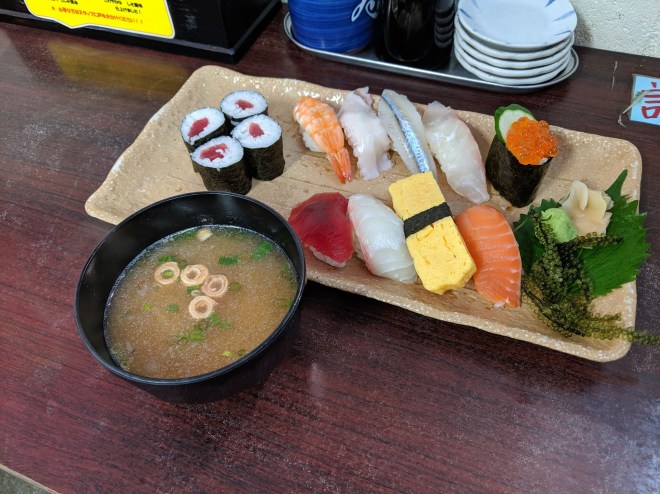
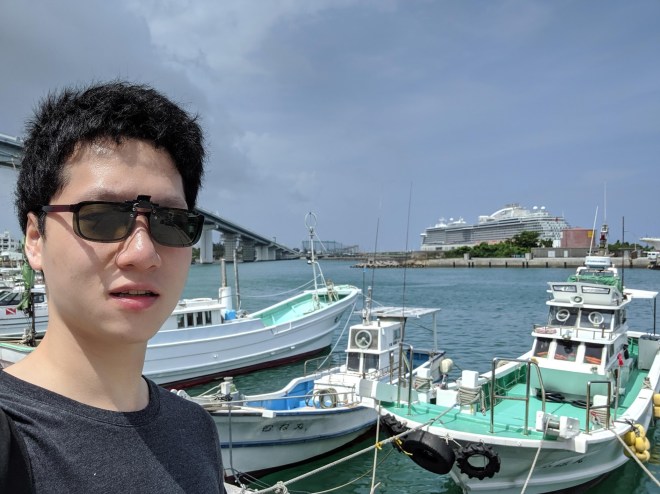
It was said that there is a Fish Market near the Tomari (泊) port. It was a 10-minute walk from the hotel. On the road thereto, for the first time I realized I have been dwelling near the sea. In the market there were insanely cheap pieces of fish, or packs of bloody-clam or sea urchins, covered in plastic wrap and displayed down the corridor. However there were not many restaurant nearby. I walked into one I discovered, whose name I do not remember now, and ordered plate of about ten assorted sushi’s, which cost only a modest 1350 yen. It was certainly fresher than what I had had in conveyor-belt sushi shops in Taipei in the before, but seemingly neither was it magically different. Outside, ferry boats and fishing boats were strung in a row, on which severely tanned fishermen were, and far away huge cruise-boat could be seen.

2.

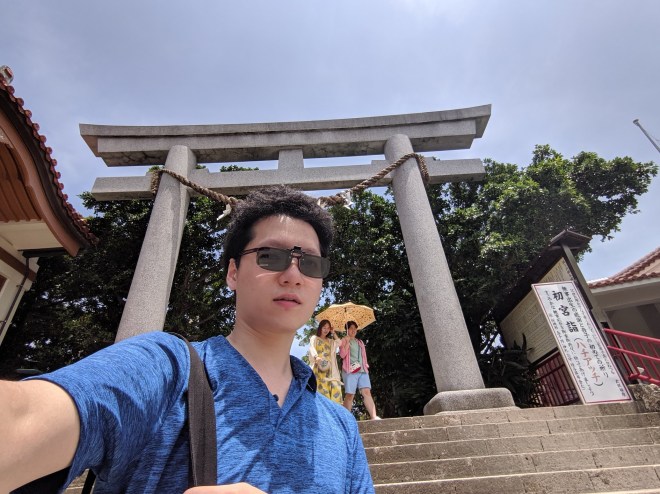
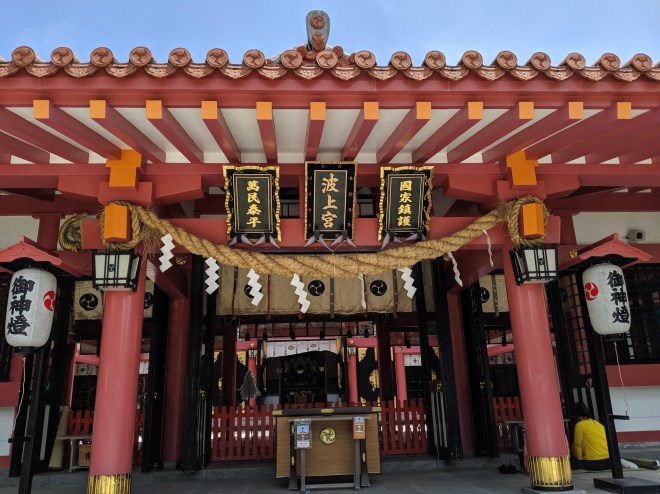
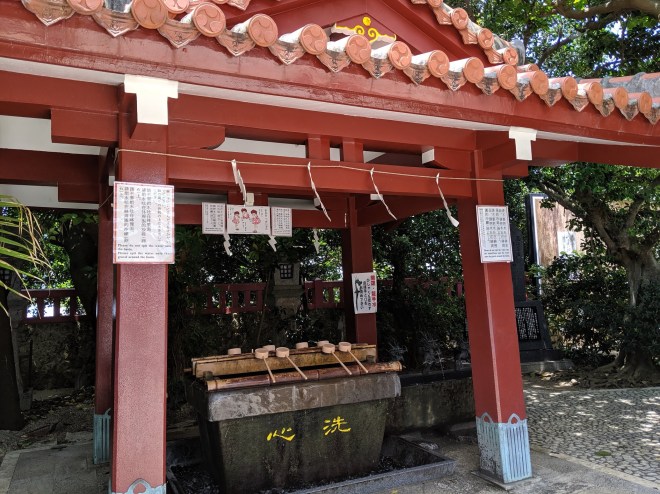
On the Google map, along the seashore it seemed possible to walk to Naminoue-Shrine (波上宮), but it was getting intolerably hot. A ice-cream-vending machine read: Beware of heat strokes. Next to the Shrine there was a small beach, where I thought I would be excited to take a sunbath, but this idea now sounded like a self-imposed torture. Up I climbed the hill, where emerged the Torii-gate (鳥居) of Naminoue Shrine’s. I did not intend for the paid prayer services, as I was not pious, but I did pressing my hands and close my eyes out of respect. The string of paper pieces hung from the ceiling waved with the hot wind, below there was the donation chest. I donated all my coins less than 100-yen into the slits of chest. By the shrine proper, out of Chinese-dragon-shaped stone statue’s mouth, flowed water for purification use; I followed the instruction to wash my hands and rinse my mouth. The heat started to made me uncomfortable and I took a taxi to Asabashi (旭橋) Station, where bus terminal was.

3.

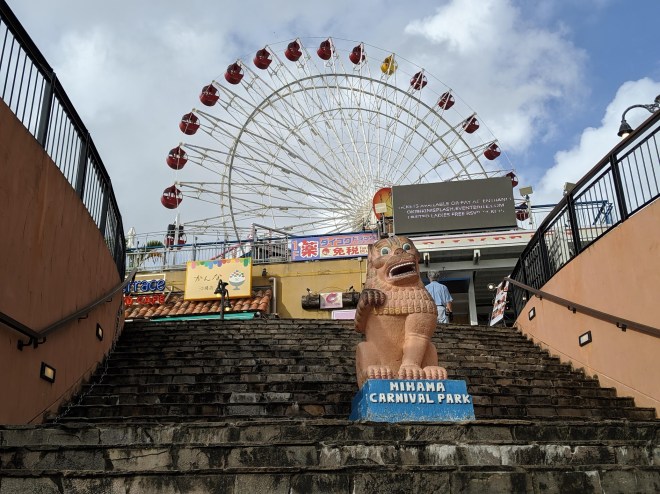
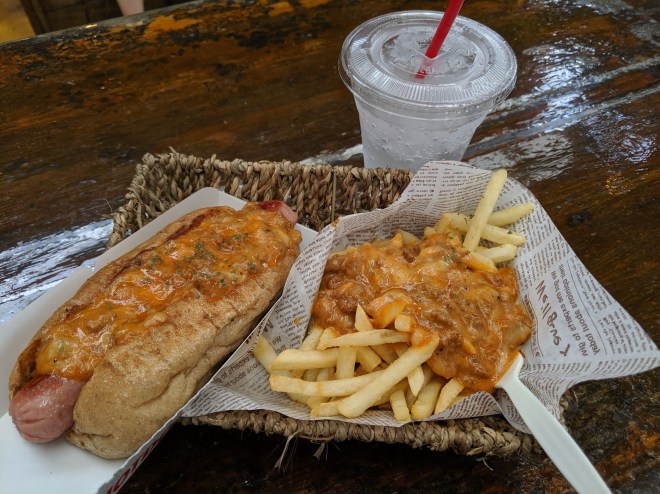
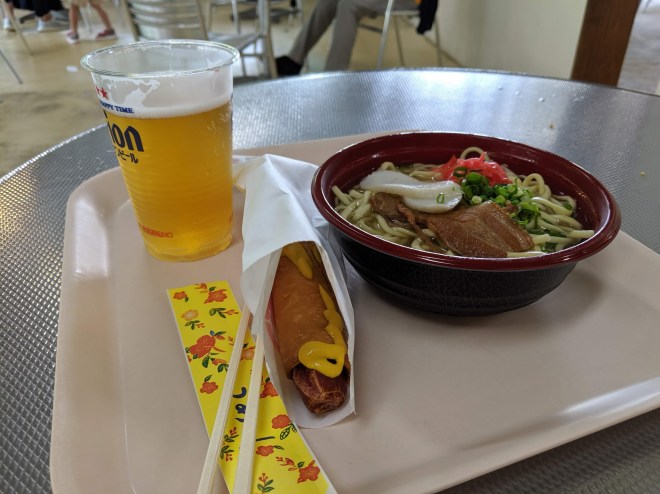
Yesterday I was considering something like going to Gyoku-Sendo, but having asked the staff I now found it too far away, and thus decided to visit the American village. The bus no. 28 will do. One walked towards the ferris wheel, and beside it the imitation-wood houses were conspicuous. There rap songs were played, and vintage posters could be seen everywhere. I had a chili hot dog which is not spicy at all. I thought it was an okay place, but the atmosphere was more Disney-like than genuinely American, as when I now walked around the genuine Japanese street, it was not the case that every single thing shouted that it was of Japanese origin. Anyway, now, it was only 2pm and I had no idea what to do.

4.

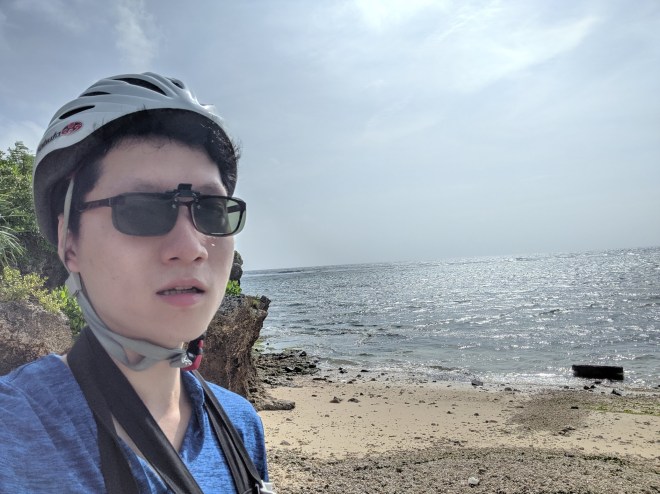
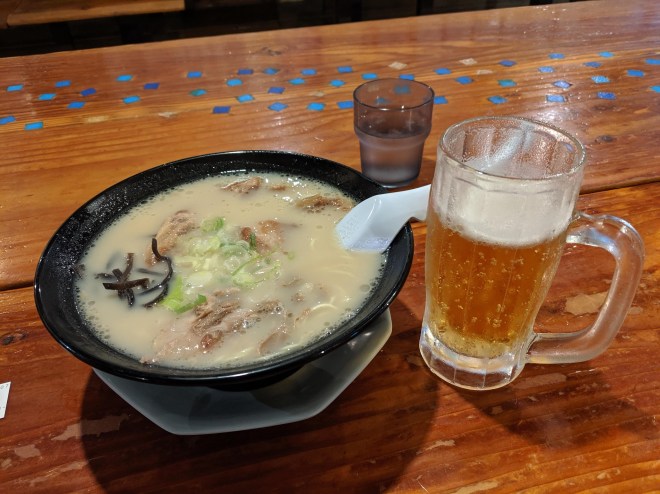
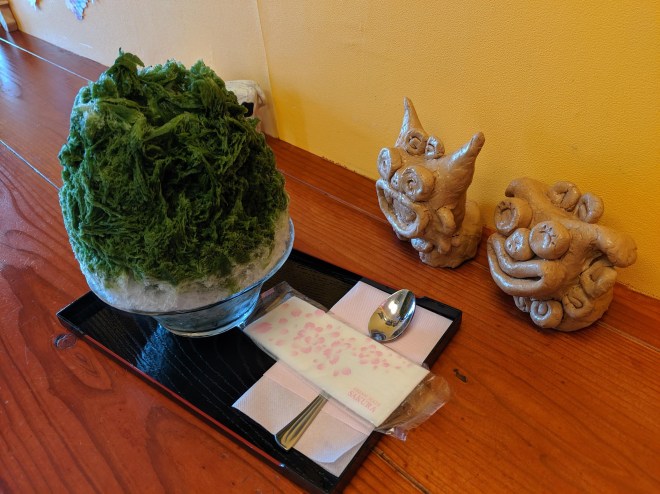
But I found, on Google map, a bike shop “Sunset Bicycle” that regularly closed in 6pm, and I came up the idea (upon discussing with the shop owner) that, following the road 58, one might get to Cape Maeda (真栄田岬) or cape Zanpa (残波岬), and came back, constituting an almost 30km round trip, which seemed not impossible. For about half an hour, by a parking area near Kadena (嘉手納), as read the sign, there was a piece of beach. I could not stop sweating, and drank nearly three bottles of sparkling water — I bought one as soon as I saw a vending machine. From Kadena, the pavement began to be bumped and narrow, and though I managed to go inside residential district to find easier roads, it could be dangerous riding along with cars, and I always forgot keeping to the left. It was 3 and half, and I found it likely that I could not made it before 6pm, and it would be extremely cumbersome if I would not be able to return the bike, thus I decided going back. Along the seashore, fragmented pieces of beach, with no one near, were all over the place. After going back, I roamed on the sands on the beach by the American Village for a while before returning the bike. I ordered a mediocre Ramen in the mall, and, thinking today’s plan was not tightly packed enough, had another bowl of green-tea flavored shredded-ice (かき氷). I could only hope to get up really early to visit the Shuri castle tomorrow, to make most of it before I leave.

Solitude Vacation in Okinawa (2/4)

Day 2: July 9

1.

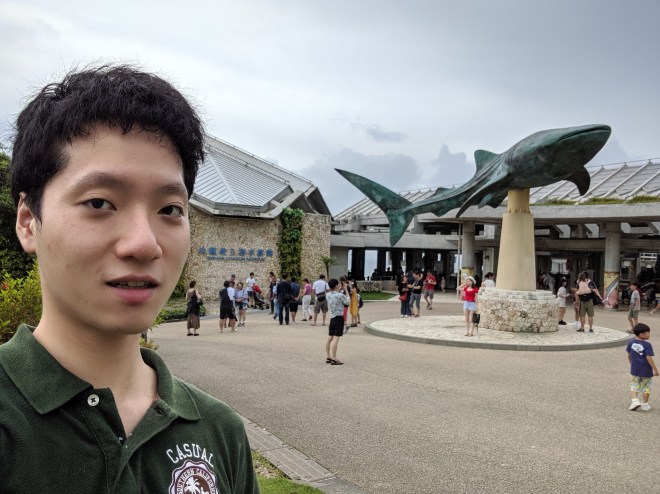
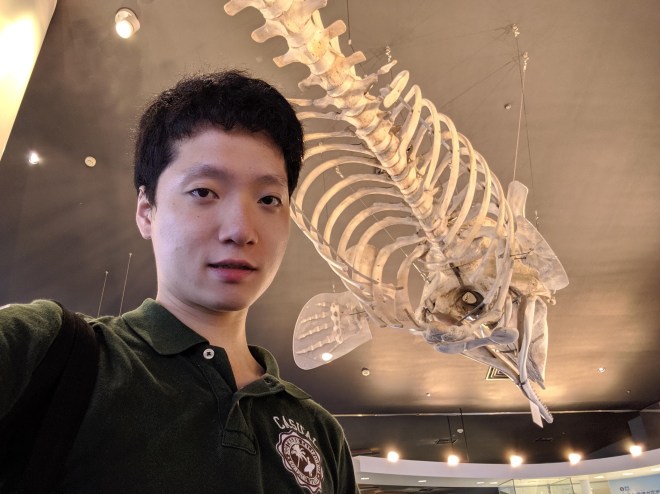
As yesterday I asked a staff of the monorail station, one went to the Naha Bus Terminal, at Asahibashi (旭橋), to get on the bus “117” to the Aquarium. It was a good 2-hour drive to the Aquarium; I did not know it was that far. Though having slept little, I could not fall asleep on the bumpy highway. By about Nago City, the bus came out of weeds and tombs, and followed the seashore. I had plenty time watching in solitude the sea, which extended to the unfathomable skyline in loneliness, and brooding about what misery the mankind was in, and completing the boring writing that this essay was. One got off on the “Memorial park” (記念公園前), which was exactly the entrance of the Ocean Expo Park, where the Aquarium was. It was moderately hot, but very humid in the air. Following the brochures, one walked for some 5 minutes to the right to get into the churaumi-suizokukan (美ら海水族館), or the “Beautiful Aquarium”. There was a Shark Statue in front of the door, which I would soon realize what it stand for.

2.

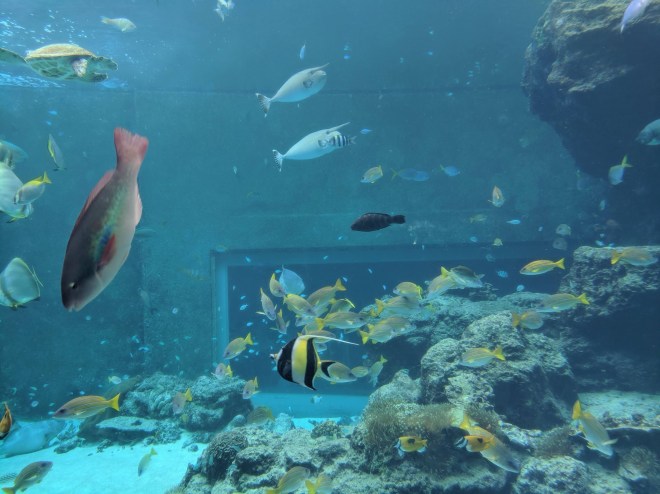
With the 1850 yen ticket, one got into the building crowded with people, many of whom were speaking Mandarin, and were downright excited kids. In the first room one may touch the sea stars and sea urchins, if done gently. And there was a big fish tank made with magnifying glass-wall, so that a variety of fish could be closely examined.
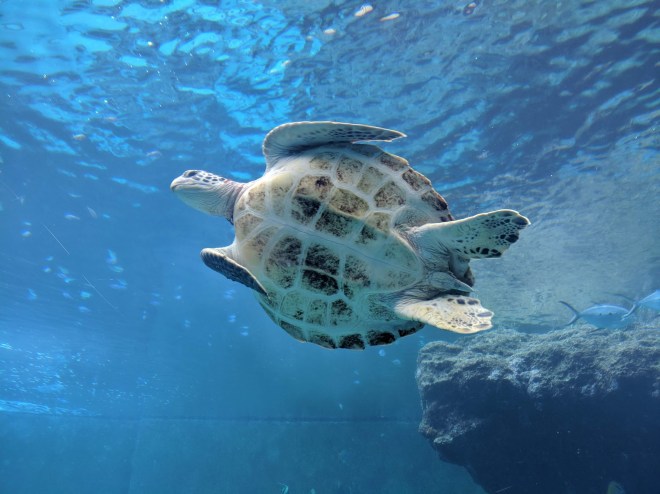
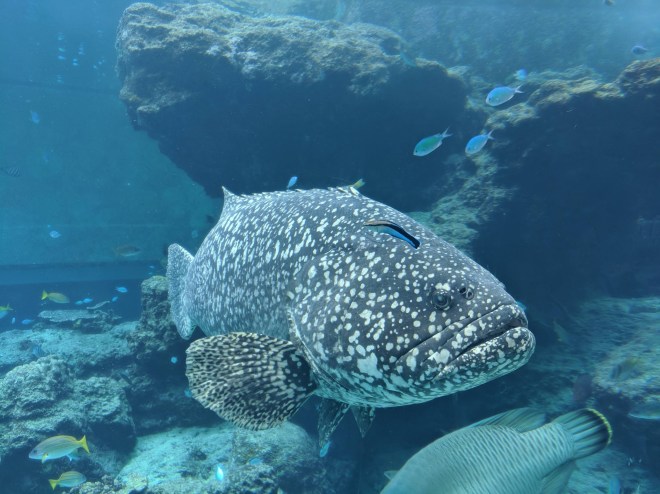
A swirling school of clownfish (people exclaiming “Nemo”, in reference of Finding Nemo), a really huge and scary grey sweetlips, a trumpetfish like a stick, and sea turtles that whipped its limbs to surface upwards — and a myriad of creatures I could not name. What, to you, now read like meaningless encyclopedia entries had, at that moment, turned into vivid bone and flesh in front of me. And how alienated have we been from the real nature that has always encircled us? We are not far from thinking the fish photo on the menu is a close likeness, especially those in a sushi shop.

3.

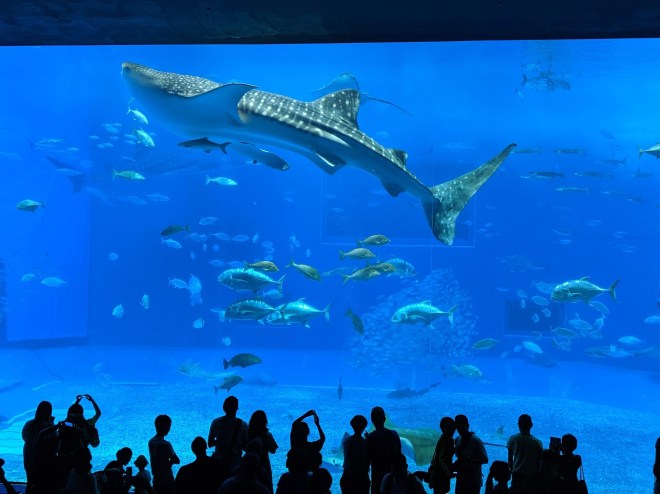
When I thought that that was it, I was wrong; what was the next room was nothing less than what I had seen. There emerged a larger fish tank. A ray with funnily protruding eyes swam, pressing the glass so it looked even closer to me. And a still larger, indeed incredibly large, fish, as wide as several adult’s height, swam casually across the curved glass wall, near the surface of water. Everyone exclaimed in earnest awe, in respective language. It was a whale shark. Now I just laughed at myself for just having considered those sea basses to be large. Furthermore, a dented canopy enabled people to directly look, under it, the whale sharks from below, and to examine its fins and abdomen closely, which could be frightening. And at 1 and half, a diver went into the tank to shot, in real-time, video of the sea creatures, and the scene was showed on a screen.

4.

Not in their genuine home, they must have required great care by the staff. We were still not sure what they eat, the written notes said. The staff even had the female whale sharks taken the ultrasound scan — with help by Taiwanese researchers — when it was about to give birth to baby sharks. Nevertheless, they must find the tank (or perhaps the bowl?) to be, unfortunately, depressingly small, barely possible to let them turn around as recklessly as in the ocean, though the tank has been recognized officially as one of the largest in the world. What must the whale sharks have been going in the sea? They were to plunge merrily, I guessed, once they felt like it, towards the deep of sea, into pure blackness, which the mankind perceived to be void, and again to rise onto the surface of water in no time.

5.

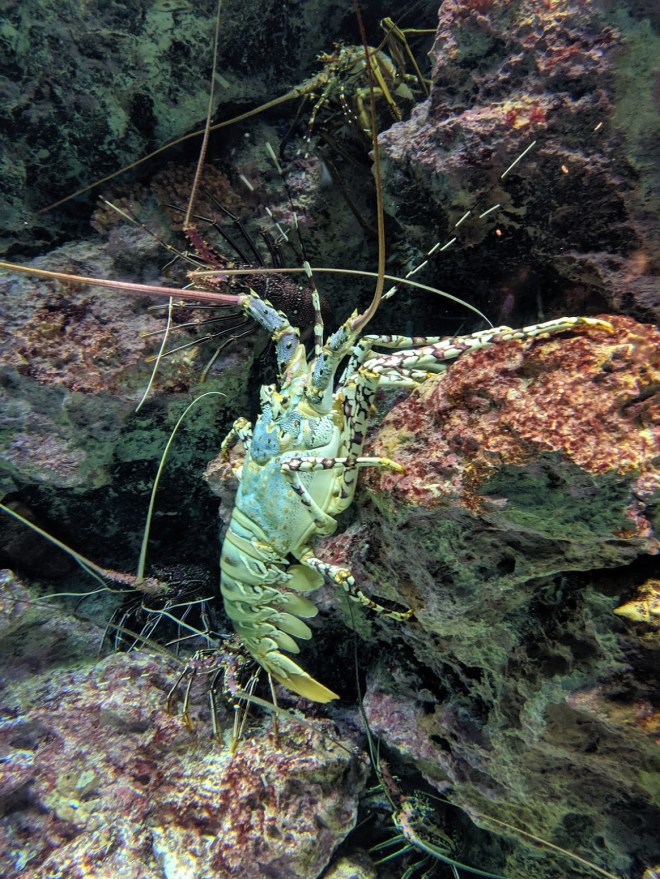
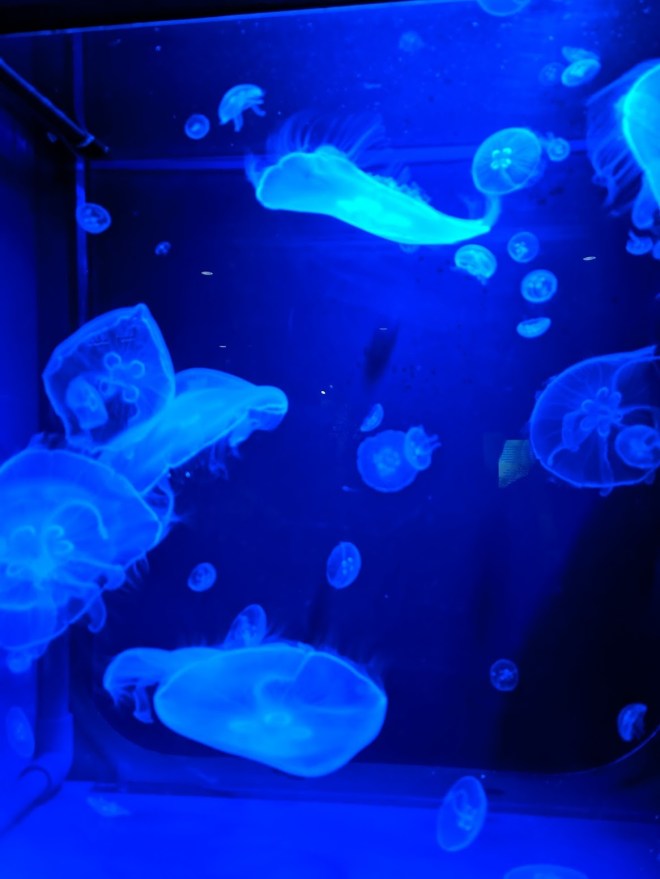
Beside the main fish tank, there were miscellaneous tanks that showed deep sea creatures. That was made possible by specially designed device that exert extra pressure, as explained on a plaque. The lobsters were big as an adult’s chest. The jellyfish, glowing under the ultraviolet light, must be eating something eerily by wielding many of its tentacles. And the flashlightfish, in the darkness, could only be recognized by with its fluorescent stripe. In the souvenir store I bought a shirt which the iconic whale shark was painted on, in the hope that the trifle amount of money would help the whale shark keep living at its ease.

6.

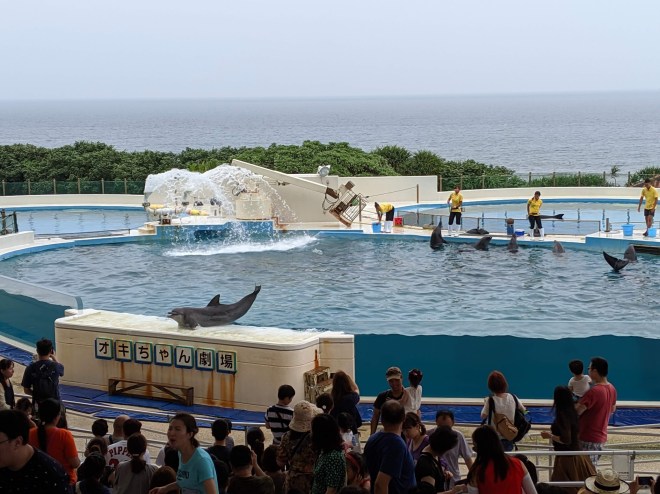
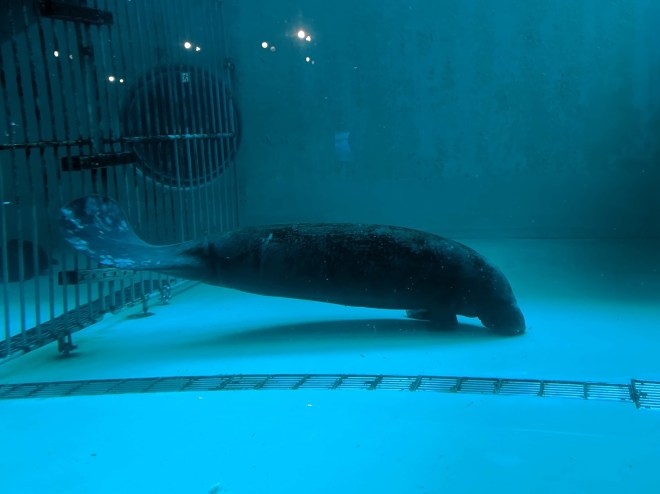
Thinking it was possible to go into the aquarium again, I felt like that was enough, and followed my whim to go to the plant gardens as promised on the brochure. Beside the Aquarium building, there were several pools for manatees, and several for sea turtles. A dolphin show, the moment I passed by, had just ended. Southwards there were more butterflies and bees, and tropical plants with prickling leaves, and crows’ caw could be heard. I was a little disappointed as there seemed to be no plant garden arranged with the same quality as the Aquarium was, or perhaps they were a reasonable distance away. But the bus schedule was awkward: The last one was to arrive here at 17:15, and it was now about 3 and half. Fearing that the bus time might be unpredictable, I decided, by almost at 4 o’clock, that I go back to wait for the returning bus. When I did, it soon came and I got on, calling it a day.

7.

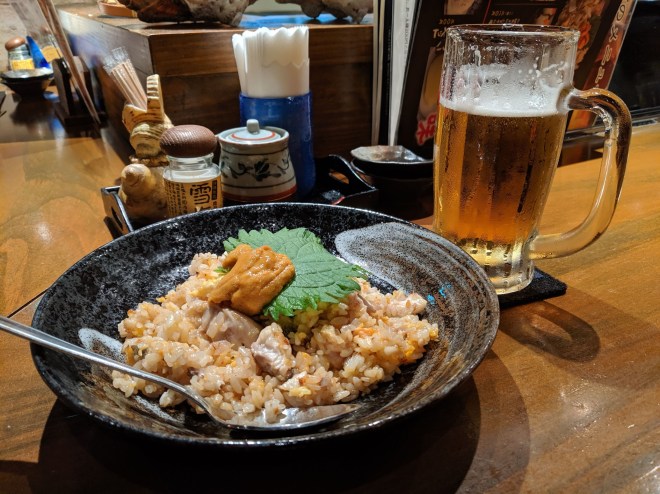
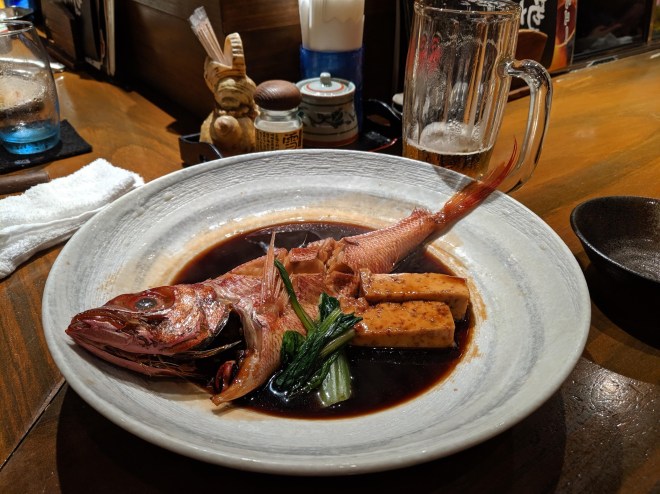
By now I had had nothing impressive, except an Onigiri bought in the morning by the Naha terminal station, and a shabby Soba-noodle in a stand by the Aquarium, so I was really hungry. After going back to the hotel and rested for a moment, I found it was already 8 o’clock, and what was still opening might only be Izakaya-bars. Speaking of those, it was curious that the area, reading Maejima (前島) on the map, seemed right at the center of the aggregation of Izakaya-bars: there were more than a dozen within walking distance. I crossed a street to go into the nearest one, “海のちんぼらぁ”, judging from the fact that it was marked 4-star on Google Maps. The staff welcomed me to a low wooden seat, near the bar adorned with seashells; there, through the glass window of the open-kitchen, fish slices could be seen, on which diligently-working cooks worked in front of me. I ordered a dish of rice fried with fish shreds and served with sea urchin. Orion Beer could be refilled free, as seemed to be the norm. I felt a tad estranged by typing on my laptop alone here, for, as I could tell from the surrounding, the very place served usually for gatherings of business people and friends alike. I ordered another soy-sauce-stewed fish, and it tasted certainly like one of the best stewed fish I ever had had. The fish was cooked just to the right point, contrasted in taste by the bitter but smooth-flavored Orion beer. I would sign in my Google account to rate a five-star for the inconspicuous bar — I told the cook. But the fish alone cost some 1400 yen, and this number ought to be forgotten.

Solitude Vacation in Okinawa (1/4)

(Note: This blog was created on July 25, 2019, and this was the first post.)

Day 1: July 8

1.

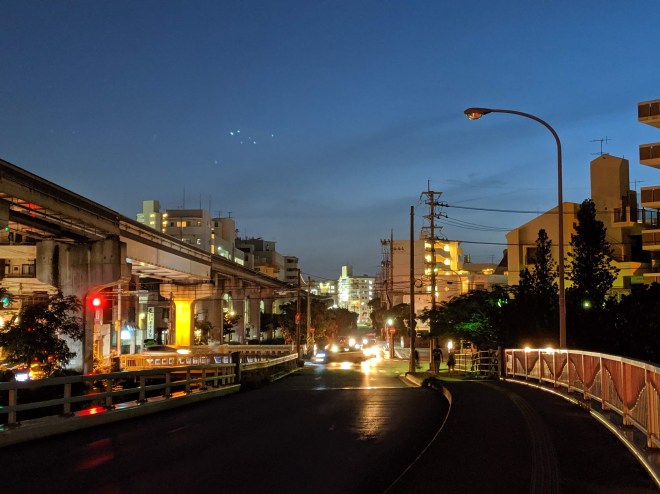
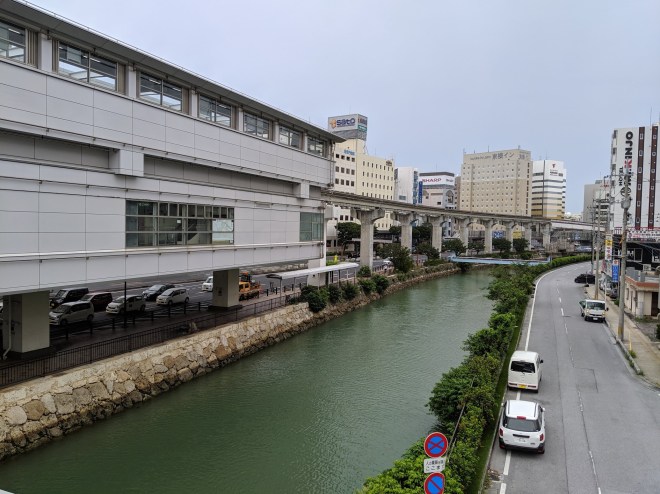
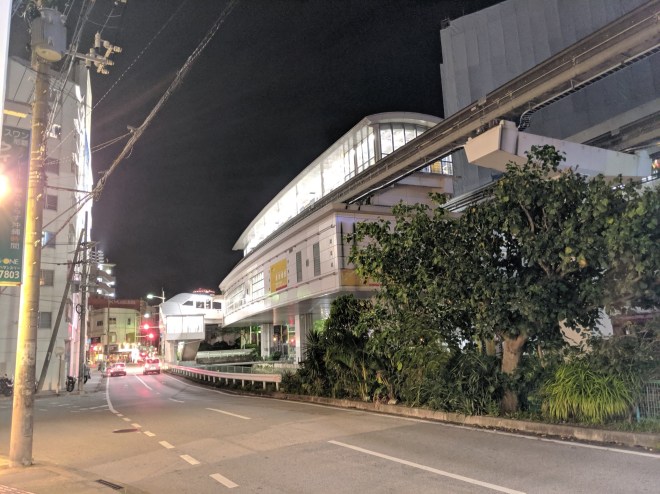
The first time I travel in some 4 years, and in fact the first time I travel alone, I was going to Okinawa for a short 4-day (3-night) vacation. Today I was impressed by the MRT Airport Line when getting to the airport, and by the electronic, simplified boarding procedure. The Eva Air flight was smooth, and took a little more than 1 hour from Taoyuan to Naha. Upon landing it was incredibly straightforward, given the Kanji obvious in meaning, to figure out how to transfer, by means of local monorail, to the Miebashi Station (美栄橋駅) near where I was to dwell for the next 3 nights. Along the neatly arranged blocks and traffic lights, markedly different from those in Taiwan, I was able to get to the hotel with little effort, by following Google Mapsthanks to the very affordable roaming plan of local mobile company Docomo, about 300 NTD each day in price. The Smile Hotel Okinawa where I stayed, marked 3 stars on Google, was tidy and equipped with most necessities, while only costing about 2-thousand NTD per night.

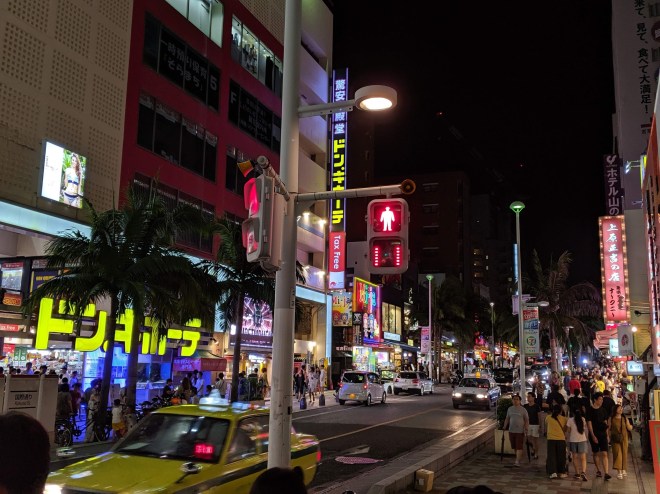
From my hotel I returned to Miebashi Station to meet a friend of mine, Fang-Yi; it was a 20-minute walk. The street was full of Izakaya-bars and Yakiniku-grill restaurants, and of chained retail stores (the most pervasive is “Lawson”) still open late, including the familiar Family-Mart. By 9 o’clockit was nominally 1 hour later than Taipei hereI saw Fang-Yi by the Station. She came to Okinawa too, together with another friend of ours, Pei-Lin. Though technically staying in Okinawa in the same interval of time, except this evening we were not to meet, for reason totally unnecessary (and uninteresting, I must add) to elaborate. Pei-Lin was in a non-ideal position to have to work to meet the deadline while on a long-planned vacation, whom let us earnestly bless and pass over in silence. Instead let us notice, in front of us, the first place of interest I was to encounter today (but not my friend, who had been a seasoned traveler of Japan)The International Street (国際通り). From the direction of radiant lights from shop signs, here lay a variety of shops and restaurants.

3.

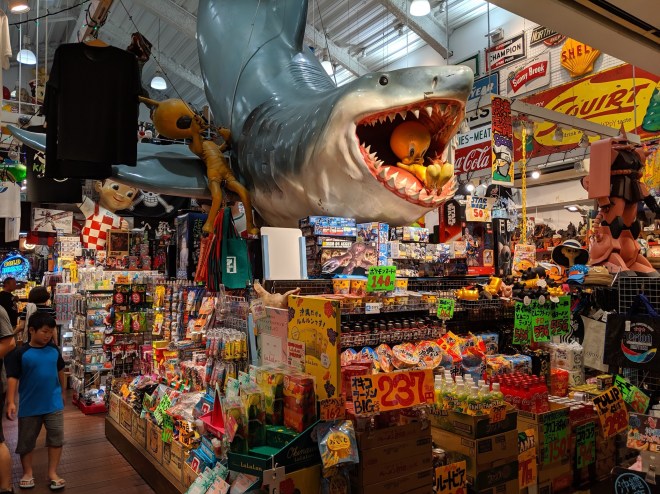
The very first eye catching thing was the glassware, a feature in Okinawa. I purchased a spiral-curved glass cup of deep blue that looked attractive. That was probably because the cup resembled, and was named after, the Blue Cave (青の洞窟), where I was not about going to, since it was too cumbersome, I guess, to swim or snorkel alone, and tiresome toothe very vacation, to me, was meant to relax. I also bought a case of Sablé cookie, made with the featured salt of Chitan (北谷), to treat fellow Lab students, in support of the excuse for the fact that I was absent. Besides food, cosmetic shops were also said to be a must visit, for your information. There were dubiously-looking masks purported to be made in volcano dust, and shampoo containing honey. And Merlion-like lion figures explained on the note in problematic English. What I did not bought: the curious looking Caulerpa lentillifera (海ぶどう), crunchy and rather salty in taste. What I did bought: cheap packs dried seaweed, the chilies dipped in wine (though it turns out I would not be able to pass that in custom), and cured fish. Food made up the most practical gifts.

4.

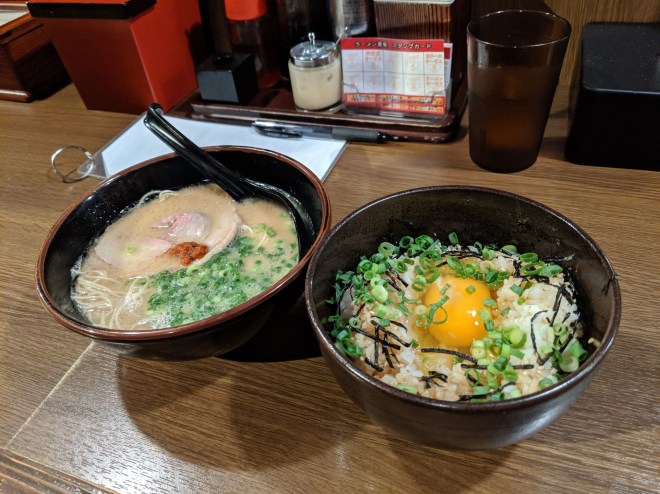
Fang-Yi and I walked westward along the street, and encountered a Ramen shop called “康竜”. I ordered a (I guess) soy-sauce flavored Ramen simply called “Ramen”, served with rice with raw yolk. It was (as was expected) salty, but good. We commented on the nature of Japanese language, as well as other language learning experiencethough I was ashamed to admit that I had almost forgotten anything German I had learnt several years ago, and my understanding of Japanese was restricted on Duolingo’s Level-One lessons taken several days ago. I shared a recent enlightenment of personal nature, that, in every language, a sentence is such an entity organized of, let us say, “content words” and “function words”, where function words add redundancydrawing analogy from study of error correction codesso that the relationship between content words can be made clear and resist from misreading and mishearing. And Japanese is particularly unusual in this regard, as it adopts two writing systems, Kana and Kanji. Kana’s exhibit inflection (in the wider sense), wile Kanji’s do not (and could not). We talked a lot, and were in good mood. Having gone back to the monorail station I parted my friend, and wished them two well. Since I planned to catch an early bus to yonder Churaumi Aquarium in the north of the tropical island, but had already spent an hour and half writing (only to find my English rusty), I had better sleep now.

The young man’s game

There is the long held notion that truly creative achievements, for example a great breakthrough in mathematics, can only be done by young people —- which for brevity let us call the *youth-only view*. The youth-only view is perhaps most famously expressed in Hardy’s *Apology of a Mathematician*, where he wrote, “No mathematician should ever allow himself to forget that mathematics, more than any other art or science, is a young man’s game.” In addition, the play *Proof*, which I enjoy very much, connects mathematics genius not only to the young age, but also to madness, agreeing and strengthening the perception of general public.

Out of curiosity I looked up Google Scholar a little, and there are both studies supporting and opposing the youth-only view. I do not plan to write a survey, nor spend more time settling this matter, but I shall share my guess, though quite without empirical evidence.

For concreteness let us focus on mathematics, but I believe the same can be said of other profession that requires immense creativity. Obviously mathematics requires concentration, memory, association, and they may have something to do with physical health too. Physical health usually declines gradually with age, for obviously reasons, but I do not think that it’s like that once you are past 40 you are doomed, unable to do anything significant ever like before. It is not a step function. Even if some calculation takes a 20 year old 1 hour, but takes a 60 years old 2 hours, the 60 year old can still do it albeit taking more time, once his or her mental faculty is intact. It is far from that elder people can’t do any decent research.

Second, it may be just that middle aged people have more obligations than young people have, and these distract them from doing research. Recall that, until change in social norm (indeed very recently), only men, not women, were allowed to pursue an academic career. Moreover, men were in general responsible for family income. They may be forced, then, to turn to something more profitable. This, too, may be somehow related to the impression that young people are more willing to consider harder problems by taking risks. Furthermore, full time professors may be occupied with administrative tasks and teaching responsibilities, making it more difficult to attack harder problems.

In short, this is my take on the youth-only view. The old age may somehow reduce creative productivity, but only quantitatively rather than qualitatively, and social and family obligations may be a distraction (if not restriction) too. What we should keep in mind, though, is that youthful vigor will not forever be with us, and time is precious and we should spend it wisely.

Remapping Input-Source-Switching Key

Feb. 7, 2017

Having discussed the problem of wrapping, I shall share several configurations and practices that, I find, make it easier to write prose with Vim.

The most used key in Vim, without doubt, is the Escape key, which returns to the normal mode.

And for a Chinese user, like me, the second most used function is also clear: switching input source (IS) between a Chinese-IS and English-IS. Thus the user is likely to find it cumbersome to switch mode in Vim in such need.

Indeed, to type one or more Chinese characters, he has to hit i (insert mode), switch to Chinese IS, type, switch back to English-IS, and hit escape. Such toil, unfortunately, nearly cancels the efficiency gained by Vim’s modal design.

It seems best to set both Escape key and the IS-switching key (or key combination) to be something close to the home row (the resting positiong where F and J are). Though Sierra (by now the latest version of Mac OS) allows the user to toggle between two ISs by Caps Lock (see System Preferences > Keyboard > Input Sources), I have already mapped Caps Lock as Escape (which is also possible only as late as Sierra came out). See: System Preferences > Keyboard > Keyboard > Modifier keys). And even if I set Caps Lock as the switch, still I have to set another key near to the home row to be Escape, but Sierra only allows me to set either Shift, Option, or Command as Escape, and each possibility is impractical.

Fortunately, I found Karabiner Elements, which makes it possible to re-map keys. Karabiner Elements works by forcing the physical key X‘s signal to be interpreted as key Y‘s function.

Its precursor is Karabiner, which has been out of order in Sierra. But the team produced a version called Karabiner Elements for Sierra. Here is the latest compiled image.

This is my setting. Physical Caps Lock now performs the function of Escape as before, and Escape that of `/~, and `/~ that of Tab, and Tab that of F5 (or any seldom used function key; F5 in Sierra dims the keyboard lighting), and F5 that of Caps Lock.

Then I set F5 to switch to the previously-used input source. I am proud of my setting. Vim users for non-Latin family language will save considerable effort with this!

Displaying Fullwidth Characters in Terminal Vim

Feb. 7, 2017

The following settings, as I see, makes iTerm2 properly and pleasingly display ASCII characters (hereafter ASCII), several extended Latin charactes (hereafter ELC), and both traditional and simplified Chinese characters and related symbols such as punctuation marks (hereafter CC). In the following, halfwidth means the width of ASCII, and fullwidth twice as wide. In iTerm2, a fullwidth is almost a square.

Tick those boxes concerning display:

  • Use thin strokes for anti-aliased text: “Always”
  • Use HFS+ Unicode normolization (better fidelity but slower)
  • Use a different font for non-ASCII text
  • Anti-aliased [for ASCII text]
  • Anti-aliased [for non-ASCII text]

Anti-aliasing makes strokes smoother, but too thick, thus we tell iTerm2 to use thin strokes, mitigating this effect.

I set these fonts:

  • 14pt Monaco as default ASCII font
  • 15pt PT Mono for non-ASCII text

The choice of non-ASCII font needs justification. It makes ASCII shown in 14pt Monaco, ELC in 15pt PT Mono, and CC in 15pt PingFang SC Regular.

Why is it so? In fact, I guess it is because, whenever a specified font does not cover the present character, Mac applies to it a similar styled font. So, if it is not specified that non-ASCII text shall be shown in another font, by default Mac will show CC in ST Heiti.

Previously I set non-ASCII font to be PingFang SC, since I like it. But I soon find some ELCs too wide, wider than halfwidth. After some trial and error, I discovered that PT Mono applied to ELCs looks good, and furthermore it leaves CC applied to PingFang SC, and all is well. How did it take me so long to discover this, all these months tolerating eye-strainingly thick Sans serif fonts!

I also recommend to tick those boxes to introduce more variety in font.

  • Draw bold text in bold font
  • Draw bold text in bright color
  • Italic text allowed

As for Vim, stick to the default set ambiwidth=single, and do not set it double.

In the beginning I heard it said somewhere that CC expects fullwidth, and thus requires set ambiwidth=double to be displayed correctly (see :help ambiwidth). But I this is not the case. Either Vim or MacVim running in either Terminal.app or iTerm2 already displays CC correctly with ambiwidth=single. (I suppose same is true for Japanese and Korean, but I know neither, and haven’t tried.)

In fact, when previously I set it double, I find the following ELCs displayed in fullwidth also: ß and ü used in German, and ligature Œ and œ, and Norwegian vowel ø, and some special symbols like Euro , section sign §, and pilcrow .

The fact may be related to the observation said above that some CC fonts renders some ELCs wider than halfwidth. I guess that, in these fonts, ELCs just mentioned will be better shown in fullwidth than in halfwidth.

Useful Git Commands

Feb. 6, 2017

Here is a slowly growing summary of Git commands I find helpful, with short explanations following them, addressed to the dear reader in second person. The reader may want to read “Setting up Git” first for relevant background.

I claim no intention to make it a complete table, even in the most rudimentary sense. What I have supposed to be useful, I summary and explain here, and what I have not, I do not. Again, I appreciate anyone to correct my misunderstandings, if any.

I use Mac OS (presently Sierra) on MacBook Air. I will then focus on Mac instructions, but Unix-like users shall find no difficulty in finding their counterpart. From now on, by convention, commands meant to be run in a Bash shell is prefixed with a $ for clarity, as goes the tradition. If you don’t know what that is, just open the Terminal.app, copy and paste whatever I quoted (without $), and hit the Return key.

Git commands require the current working tree set to be either the top directory or any subdirectory of it, except those inside .git/. There are workarounds if you really don’t want to do this, but I guess it is safest just to always go (by cd) into the top directory. This will be assume true hereafter.

Before we continue, keep in mind that Git comes with a detailed manual. If you have any question of fetch, for example, open Git man pages by:

$ git help fetch

Or equivalently,

$ git fetch --help

Saving and uploading: from local to remote

We may visualize git actions as interaction between the working tree, the index, and the local and remote commit history. Thus, add, commit, and push, among others, transfer data from local to remote. In this section, we study these “outward” instructions .

Comparing

Before committing, it is helpful to see what new work has been done. To show modification not added to the index, that is, differences between working tree and the files as was indexed:

$ git diff

If new work has been added to the index, you can still compare the files as was index with latest commit in the local repo,

$ git diff --staged

Instead, to compare a specific file in the working tree with the committed version of it in the local repo, say README.md,

$ git diff <commit_pointer> README.md

where <commit_pointer> is a pointer to the latest commit.

Navigating diff result

After any of these, you will see a new page that summarizes modified lines, and what is changed.

Navigation commands are identical to less, and similar to Vim. Hit j, e or ^e to forward one line (where ^ stands for Control key). Hit k, y, or ^y to backward one line. Hit f or ^f to forward one window. Hit b or ^b to backward one window. Hit d or ^d to forward one-half window. Hit u or ^u to backward one-half window. Hit q or :q to quit.

Updating the index

If there are new files created or old files deleted, run this to update the index according to the present working tree:

$ git add -A

The following does almost the same, except in that it ignores files in a newly created directory:

$ git add .

To view a list of all files saved in the working tree now and being tracked,

$ git ls-tree -r master --name-only

That is, list recursively name of files only (without commit hash) in the master branch (or any other branch specifed).

Committing

Before you commit, you may want to see a short summary of what files are changed and deleted, with

$ git status

To commit, use git commit. However a commit message is strongly recommended, which reminds you as well as other people what you have done. For example,

$ git commit -m "Rename files using new convention"

Summarize your work concisely, within less than some 70 characters. If you cannot do this, you should have probably split your work into two or more commits. It is the tradition that, to save space, verbs in base form are used, and no period is there in the end.

You can modify your commit message even after you commit, with

$ git commit --amend

Now, an editor opens, showing the commit message in the beginning, where you may revise it. This file is saved as .git/COMMIT_EDITMSG.

I find it useful to edit here because you don’t have to backslash-escape special characters, which may occur in verbatim expressions. You can also add more explanatory lines below, separated from the title with a blank line. The status is shown again as commented lines to recapitulate their difference for you.

Viewing Commit Log

Afterwards, you can view the commit log with

$ git log

The result shows commit IDs, authors, time stamps, and commit messages.

To make the log more concise and informative,

$ git log --all --decorate --oneline --graph

The names of option are pretty explanatory. Mnemonic: “a dog”.

Identifying preceding commits

The pointer to current commit in question is named HEAD. To retrieved its ancestors, two operators could be used. HEAD^2 means going up two levels of node, pointing to the youngest of its grandparents of the head. HEAD~2 means, within its several parents, counting twice the youngest elder siblings. The two operators may be composed, for example HEAD^3~2.

Pushing

To push all commits from the local repo to the master branch in the remote repo (origin) whenever they have not been updated,

$ git push origin master

In the first time you push, you may want to create a “upstream tracking reference” to your remote repo by -u, so that, in the future when you push or pull, you do not need options by default.

$ git push -u origin master

Say yes, if, the first time you push, you are asked that whether you should consider the RSA host key for GitHub’s IP address as a safe one.

If you have messed up something, and Git is unable to figure out their ancestral relation and thus refuses to push, you may try with the flag -f or --force:

$ git push origin master -f

This forces every commit in question in the local repo to overwrite its counterpart in the remote repo, and may cause the remote repo to lose data, so think twice before using it.

Adding tags

To add a tag to the latest commit (even when you have modified the working tree after commiting), use

$ git tag -a "v1.0" -m "Compile successful"

Replace the version number and tag message with yours; same for below.

To list simply all tag names,

$ git tag

To see what (long) commit hash a tag points to, run

$ git rev-list -1 "v1.0"

A git push don’t automatically push a tag. You have to

$ git push origin "v1.0"

Updating or regressing the working tree: from remote to local

We may also transfer data from remote to local, by virtue of clone, fetch, pull, checkout, and reset, among others.

Downloading from remote repo

To download everything from the remote repo into an empty directory (which must be empty, otherwise there would be merge conflicts), that is to say clone, we shall cd into it and

$ git clone git@github.com:aminopterin/computer-notes.git .

(The remote url is taken as that of this repo for example.) Replace . to the path you want to clone into. If . is omitted, the entire repo is cloned to be a new subdirectory in the current directory.

On the other hand, to do the same (download from remote repo) with an existent working tree, that is to say fetch, we may use

$ git fetch origin master

(Or any remote branch instead of master.) This keeps creates a local copy of a remote branch in the local repo (the .git directory) only, while not affecting the working tree, nor the head. Interestingly, only when we checkout, do we automatically merge the remote branch, having being fetched but not yet in the working tree, with the local branch where the working tree is.

Meanwhile, a pull not only fetches all remote branches, as just describe in the above paragraph, but automatically tries to merge all conflicts into the current pointed branch.

$ git pull origin master

(Or any remote branch instead of master.) I feel that it is clearer to fetch and merge explicitly than just to pull, unless the situation is simple enough.

Creating or forking a new branch

A branch is a duplication of the working tree, so that the new branch based on it keeps being revised and developed afterwards. Thus, modifications happen in parallel, not only along the original branch, but the new one too. If the branch being based on is other people’s work on GitHub for example, we also say it (the old branch) is being forked. To create a new branch <name_of_new_branch>, basing on the current working tree,

$ git branch <name_of_new_branch>

Shifting the head

But the command branch only does not change the head. To check out an existent branch <another_branch> already created with git branch,

$ git checkout -b <another_branch>

In general, local files will be overwritten, making the working tree match <another_branch>.

I suppose that, after modifying in the working tree, we had better commit them before checking out another branch, otherwise it is not obvious what will happen. If I make some change in (say) a test branch and, without committing, check out back the master branch, then the working tree will not restore to the state of the latest commit of master branch, and there will be no error message.

To make sure whether the head is pointed to the intended branch, use

$ git branch

It will return a list of branches, with the current one highlighted (in my case colored green, and prefixed with a asterisk).

Reversing the working tree

One way of reversing the working tree to a previous commit (together with the index and the head) is reset, namely

$ git reset HEAD^2 --hard

Alternatively, the option --mixed (which is the default option) only reverses the index and the head, and --soft only reverses the head.

Beside reset, revert is another way to restore the working tree, but unlike reset, it creates a new commit. For example, with

$ git revert <commit_pointer>

a new commit which is the previous commit being pointed, is now created. Note that the history is not rewritten in this case.

Managing branches

In addition, we may also modify commit objects and the connection between them, changing the history and relation between branches.

Merging branches

$ git merge <merged_branch>

If there are conflicts, there will be an error message that tells you that. Git essentially overwrites the conflicting part of the file in the working tree.

<<<<<<<
(The text excerpts according to the chief branch being merged into.)
|||||||
(The text excerpts according to the common ancestor version.)
=======
(The text excerpts according to the feature or development branch merging into the chief branch being considered.)
>>>>>>>

The user is asked to replace lines between <<<<<<< and >>>>>>> (inclusive) with what he wants. After all conflicts are resolved, add the changes and merge again.

Rewriting history

Sometimes we might wish to rewrite the history, so that the last 5 commits (say) become one. One way to do this is

$ git reset --hard HEAD~5
$ git merge --squash HEAD@{1}

The first command resets the head to the commit just before the last 5 commits, and the second command combines these commits. Here, HEAD@{1} is the position of the head just before the previous command. The command reset was already discussed above. After these commands, commit.

Alternatively (slight difference exists which I do not elaborate here),

$ git reset --soft HEAD~5

Then commit those squashed changes. The commit message will be helpfully prepopulated with the commit messages of all the squashed commits.

Then commit those squashed changes. The commit message will be helpfully prepopulated with the commit messages of all the squashed commits.

It is even more interesting to “replay” a series of modification onto elsewhere. The command rebase applies respective changes of each commit from the current commit (where HEAD is) on the specified branch, by creating corresponding new commits.

$ git rebase <branch_being_merged_into>

Alternatively, we may choose one commit of a certain branch only, and apply the change from the branching node up to itself, on the current commit. That is, doing the same as rebase only on certain commits, instead of all of them of that branch.

$ git cherry-pick <commit_being_picked>

More Information

  • The Git Documentation This is the documentation on the official homepage of Git. Same material may be found in man pages that are included in the Git package itself, to quote the site.
  • Richard E. Silverman (2013). Git Pocket Guide. Sebastopol, CA: O’Reilly Media. Guides for Git are abundant. This is a readable short guide that may both be read from cover to cover, and looked up as reference.
  • Git—The Simple Guide A table of for the most common Git commands, and very brief explanations for them. On the site, there is a downloadable PDF version.
  • Stack Overflow Stack Overflow is still the most likely place you end up with if you google your problem, but, since everyone can submit, you should take their advice with a grain of salt.
.PHONY in Makefiles

Chinese version written Oct. 31, 2016
English translated Jan. 31, 2017

Makefile Reviewed

GNU Make is a utility used to manage the building process, i.e., the linkage of compiled files. In it, a target is separated by a colon “:” from its prerequisite; this specifies a dependency. The left-hand-side target’s last modified date is intended to be later than any of the right-hand-side prerequisite’s last modified date. Otherwise, the recipe that follows the dependency declaration will be executed.

For example, I want to cook spaghetti with tomato sauce. If I have bought a new pack of spaghetti today, I shall cook the newly bought spaghetti, and shall not use the spaghetti I left last night in the refrigerator. This way, though the tomato sauce and minced meat need not be cooked again, but the totality of “spaghetti with tomato sauce” is thus newly cooked.

The Keyword .PHONY

That said, if you have seen someone else’s makefile, you would probably see the line

.PHONY: clean

which is used to clean all the already compiled files. Note that the word clean has nothing special, but you have to specify its meaning, like:

clean:
    rm -rf ./*.pdf

Why .PHONY is necessary? I have heard it from a post on Stack Overflow that, while clean is not a real object, but an action, if there is a file named clean on the same directory (probably not a good idea to choose such name), than Make will not execute the recipe of clean, thinking it is up to date. But by declaring it phony, no longer does clean‘s recipe depend on existence actual files, unlike genuine targets. Indeed, the literal meaning of “phony” is “fake”.

But, while the example regarding phony targets given just above assumes that clean has no prerequistes, how is it like when clean does have one or more prerequisites? Indeed, now that a phony target does not even have last modified date (because it is not a file), it is not clear, then, when the recipe is executed, or if it is always executed.

Some Experiments

The First Test

Out of curiosity, I conducted a small experiment on all. Recall that all is executed when make all is run. Consider the makefile

all: `f1` `f2`
	@echo recipe \`\`all\'\' executed.
`f1`:
	@echo process 1:
	touch `f1`
`f2`:
	@echo process 2:
	touch `f2`
clean:
	rm `f1`
	rm `f2`
.PHONY: clean

When neither of f1 nor f2 exists, when I run make, the console output is, of course,

process 1:
touch `f1`
process 2:
touch `f2`
recipe ``all'' executed.

That is, both targets were generated. When I run make again, it is then

make: `all' is up to date.

That is, recipe of all was not run.

The Second Test

To reverse the situation to the beginning, run make clean which deletes both of f1 and f2. Now, I generate an empty file by touch all. And I run make, and f1 and f2 will again be generated as above, and the console output is all the same as above. If make is run for a few more times, it says all is up to date as above.

This is because Make thought all remained to be generated again, for neither of f1 nor f2 exists.

The Third Test

Again run make clean to delete f1 and f2. This time, I run make first to generate them, and run touch all afterwards. Now run make, and notice the console outputs

make: `all' is up to date.

Because the empty file all has shielded the target all, the recipe of all is not executed. Make thought I intended to make the file all in left-hand-side, which is later than right-hand-side, f1 and f2. That is, here all is existent and up to date.

The Fourth Test

Subsequently, I add this line in my makefile:

.PHONY: all

and save the makefile. And I run make again. The console output is, instead,

recipe ``all'' executed.

Indeed recipe of all is executed, as I thought. But f1 and f2 was not generated, as they already exists. Same happens when make is run for several more times. What a reassurance!

Conclusion

In conclusion, as how I understand it, if a target has been declared as prerequisite of the .PHONY target, i.e. a target is phony, then its recipe will always be executed. Of course, when following the recipe, its own prerequisites must exist and up to date, as usual; if they are outdated, they will be generated in advance. In particular, if the phony target has no prerequisite, its recipe will be directly executed.

A phony target, in short, is thought of as something older than everything, as old as time. “File as old as time, true as it can be.”

Setting up Git

Jan. 25, 2017

Here is a memorandum for Git settings I use. I hope that this helps future newcomers to Git find information sometimes hard to look up.

It has not been long since I started to learn to use Git, and many point are simply paraphrased from some Stack Overflow answer. Thus, I encourage and deeply appreciate that the reader shall remind me of every error.

Installing Git

In Mac, Xcode is built-in. Xcode includes Command Line Tools, which in turn includes Git. In case you need to install Xcode, find it in App Store.

However, Xcode takes up a lot of space (10G at least), so if you don’t develop software for Mac, you may well uninstall it, along with relevant libraries. You can still install Command Line Tools for Xcode only. To do this,

$ xcode-select --install

You may also directly install Git using Homebrew:

$ brew install git

To check current version, so that you know whether update is successful:

$ git --version

Beware that Mac user may not be allowed to overwrite the built-in binary that came with Xcode. If you are determined to overwrite,

$ brew link --overwrite git

To make sure this is effective, you may check current location of binary:

$ which git

if the result is /usr/bin, then this git is the built-in one. If it is /usr/local/bin, this git must have been the one you installed.

Basic concepts

It is best that the reader take some time understanding the underlying mechanism of Git, so that from now on we can better describe its operations and grasp their meaning. I suspect many popular conceptions, being simplications, are wrong in a strict sense, and unfortunately, they often bewilder rather than clarify things for the reader.

  • A tree is an aggregate of nodes, each of which contains a pointer of its own child or children, if any.
  • A blob is an opaque binary file that records the the content of a file in the manner Git may read.
  • A tree object is a representation of directory. Each subdirectory of its is represented by another tree that it points to, and each file of its by a blob that it points to.
  • A working tree is the totality of actual source files you are working on. All you see and edit (using Git or not) belongs to the working tree. For convenience, I say that there is a top directory which is the minimal directory that encompasses the working tree.
  • A local repository (local repo) is a subdirectory in the working tree named .git/. Everything Git needs is saved inside the local repo.
  • An index lists files in the working tree Git is aware of. The index is saved in the local repo. We say that Git tracks these indexed files.
  • When you commit, you create a blob called commit object that includes sufficient information to describe the present working tree, along with a unique hash generated according to the author, time stamp, file contents, among other figures.
  • Commits are linked to each other according to respective historical relation, which makes up a commit history.
  • A stash is a commit object not yet committed.
  • When you clone a repo, you you create a copy of it.
  • When you fork a repo, you clone it and modify it, thus generating two diverging versions, and subsequently different histories occur.
  • When you fork you own local repo, you create a branch. Even if the local repo has not branched, we also say there is only one branch called master.
  • A remote repository (remote repo) plays a similar role to local repo, but is store in an Git hosting service, like GitHub. It stores a working tree and commit history.
  • When you push, you download files from the remote repo to to those of local repo.
  • When you pull, you upload files from the local repo to those of remote repo.

Creating local repo

Now let us say that there is a directory called ~/computer_notes. Run cd into it:

$ cd ~/computer_notes

and generate local repo with:

$ git init

Following our example, the local repo will be named ~/computer_notes/.git.

Remember that nothing affects the remote repo unless you push. The implication is that if you have screwed up something and want to start anew from the very beginning, willing to abandon the not-yet-pushed changes in the working tree, you can simply delete the whole /.git and git init again.

Creating remote repo

To create a new remote repo, sign up a Git service provider if you haven’t. No wonder the most popular choice is GitHub. But Bitbucket is also widely used. The difference that concerns average user most is probably that Bitbucket offers unlimited private repositories for free while GitHub does not, but that Bitbucket limits number of users for free to 5 while GitHub does not. You may well sign up both, taking their respective advantage.

The following instructions apply to GitHub, but you get the main idea. In your personal homepage, click the plus sign on the upper right corner, and choose “New repository”.

When you name your remote repo, note that GitHub disallow special characters, and forbids even underscores, but allows hyphen. I deem it a good convention to name local repo with underscore-separated words, and remote repo with the same name with hyphen-separated words. Traditionally repos are named all in lower case. Following the above example, let us call it computer-notes.

GitHub offers two protocals: https and ssh. More on this on a later section. For now, enter the page for the repo, and click the green button “Clone or download”. If the small title reads “Clone with HTTPS”, there is a url that looks like

https://github.com/aminopterin/computer-notes.git

Click “Use SSH”, and you will see something like

git@github.com:aminopterin/computer-notes.git

To set remote url, go back to your terminal emulator. First you have to create an abbreviation of the remote url called origin. If you decide to use SSH, use

$ git remote add origin git@github.com:aminopterin/computer-notes.git

After having created origin, if you have to change url later, use set-url.

$ git remote set-url origin git@github.com:aminopterin/computer-notes.git

To list currently existent remote repo(s):

$ git remote -v

The result will look like:

origin  git@github.com:aminopterin/computer-notes.git (fetch)
origin  git@github.com:aminopterin/computer-notes.git (push)

To see more information in order to trouble-shoot, you may

$ git remote show origin

Configuring Git

Keep in mind that it is the same thing to run, in the terminal,

$ git config --global foo.bar quux

as to append the line

[foo]
    bar = quux

to ~/.gitconfig (the second line should start with a tab). I will use the former form in the below.

Ignoring certain files

It is not in general Git’s purpose to track binary files. Binary files cannot be compared by utility diff, thus cannot be merged or rebased in the normal sense. So you don’t track binary files unless some routines really need it, and so it must be uploaded to the remote repo. For example, a logo of your program that you want those who clone to see. Create a file named .gitignore in the top directory to tell Git to ignore specified files, all files in specified directories, or all files having specified extension. If, for sake of illustration, your .gitignore has these lines,

.DS_Store
*.pdf
sketch/

Then the .DS_Store file in the top directory of working tree, all .pdf files anywhere in the working tree, and all files in the subdirectory called sketch/ in the top directory, will be ignored by Git. You can play around with wildcard *.

Note that, after .gitignore being modified, those files that have been tracked before but are no longer supposed to be tracked now, will however keep being tracked. To stop tracking them, remove all the cache by

$ git rm -r --cached . 

Then add and commit as usual. This also works when, for some reason, a subdirectory is previously ignored, for example because the subdirectory was itself a git working tree, and thus cannot be added for now. Removing caches and adding to index again, solves such an issue.

Specifying text editor for commit message

The default editor for commit message is vi. However, some of the lines in my .vimrc is not compatible with vi (which is normal), and Vim is used anyway with wrong color settings.

To set Vim as the commit message editor, put these in ~/.bashrc:

export VISUAL=vim
export EDITOR="$VISUAL"

You can replace with your favorite editor.

Alternatively, you can specify the editor not through Bash’s setting but through Git’s, with

$ git config --global core.editor "vim"

Color

To color Git’s console output,

$ git config --global color.ui auto

All the various color.* (where * is a wildcard) configurations available with git commands, will then be set. The auto makes sure Git try only those colors the current terminals emulator supports. When a command is used for the first time, relevant color configuration is set.

Generating SSH key and automatic login

HTTPS and SSH differ in several aspects. On one hand, in the presence of a firewall, the HTTPS port is almost always open, while the SSH port is not, being often blocked by network firewalls. On the other hand, an SSH Key is more secure in that, under SSH protocol, the user does not actually login, but under HTTPS he or she has to login.

Under SSH protocol, authentication of SSH Key is easily managed by an ssh-agent, while under HTTPS, the user may also use a credential helper, which I have not tried.

To generate an SSH key for RSA cryptosystem, having 4096 bits, with your email specified,

$ ssh-keygen -t rsa -b 4096 -C "your_email@example.com"

You will be asked for the filename with path (by default, ~/.ssh/id_rsa), and a passphrase. Since with an SSH-agent you have only to type the passphrase once, you may well choose a reasonably long (say, some 6-word) phrase. Special characters are not only allowed, but in fact encouraged.

If you have several keys, you may rename the public key (the one with extension .pub) and private key (the one without), but they must share the same name except for extension. Let us rename it rsa_github.pub with mv ~/.ssh/id_rsa ~/.ssh/rsa_github.pub.

Browse your GitHub account, and go to “Personal settings”, and then “SSH and GPG keys”. Click “New SSH key”. Copy and paste the whole content of your public key, or more simply,

$ cat ~/.ssh/rsa_github.pub | pbcopy

and paste it into the box.

To let Keychain remember the key, in ~/.ssh/config append UseKeychain yes after the relevant lines (omitted lines shown as ...)

Host github.com
   User git
   ...
   UseKeychain yes

Hopefully, you will never be asked for passphrase.

Reminding GitHub the correct language

GitHub guesses the language in which most sources in your repo is written in. A comprehensive list is found here. The language is shown besides a round dot in each repo in your own profile page.

If you would like to use an idiosyncratic extension, GitHub may judge it wrongly. For example, GitHub does not recognize .hpp as C++ header. To prevent this, you add a file named .gitattributes in the top directory, with content

*.hpp linguist-language=C++

Rendition of non-ASCII characters

By default, non-ASCII characters, such as Chinese characters, are backslash-escaped according to C-styled character codes. For example, “我” becomes \346\210\221. To show them as verbatim,

$ git config --global core.quotepath false

Writing Prose with Vim

Jan. 21, 2017

This note first discusses the wrapping problem. I observe the pros and cons of both soft and hard wrap.

The present concerns are urged by my decision to use plain text to save my pieces of prose in Markdown. They are in turn edited with Vim, since, in the past four months or so, I have grown gradually accustomed with Vim, and have started to like it. Still, attempt to write and edit prose, rather source code, with Vim, leads to a number of difficulties related to wrapping of text.

Terminology

Before discussing the wrapping problem, I assume the reader has a basic familiarity with Vim. (If you do not, please do yourself a favor and give it a try.) And I now define several terms.

A window is the part of monitor used to display text. If toggled full screen, the window is all of the monitor screen; if :vsp (vertical split) is run, the window is half of the screen. A frame is the present-visible part of the text file.

I say a physical line is an ordered collection of characters delimited by end-of-line (EOL); see another note of mine, “End-of-line Characters”. On the contrary, a apparent line is an ordered collection of characters displayed in a single row in the current window.

I say a plain text file is softly-wrapped if physical lines are allowed to be longer than current window width. And, on the other hand, I say a plain text file is hard-wrapped if such EOL have been inserted that no physical line is longer than current window width.

A compiler (or interpreter) is said to weakly render the EOL if a single EOL in the source is ignored. Meanwhile, a compiler is said to strongly render the EOL if a single EOL in the source is rendered a newline in the binary executive (or visual output). Both a weakly- and strongly-rendering compilers render two consecutive EOL the beginning of new paragraph.

Editing Softly-Wrapped Text with Vim

I just distinguished soft wrap and hard wrap. One will soon find it cumbersome in several aspects to edit soft wrapped text with Vim.

Indeed, by a “line” Vim means a physical line, and in a soft-wrapped piece of prose, a physical line is a paragraph. The result is a file with very long physical lines and blank lines alternating each other.

Navigation

In Vim, j and k stand for navigation in terms of physical lines, while gj and gk the same in terms of apparent lines. Thus the first inconvenience the user may experience is that, in a piece of prose, we normally intend the action of gj and gk, and may still occasionally need j and k. Thus we may map j to gj, and k to gk, and conversely gj to j, and gk to k.

Displaying Lines Not Fully Shown

Another irritation is that, in the very end of the current window, there may be some space shorter than the next physical line; in this case, that physical line is not shown and such space is wasted. This effectively makes my window (already being split) quite small.

A partial workaround is to toggle between displaying the next line as much as possible, and not displaying altogether:

noremap <silent> <leader>\ :call ToggleDisplayLastLine()<cr>

where the function ToggleDisplayLastLine() is implemented as thus:

function! ToggleDisplayLastLine()
    if (&display=='')
        let &display='truncate'
    else
        let &display=''
    endif
endfunction

Scrolling

Moreover, it is awkward to scroll either for half frame (<ctrl>u and <ctrl>d) or a whole frame (<ctrl>f and <ctrl>b).

As for half-frame scrolling, in fact, half of the window does not correspond to many lines, because every physical line now consists of too many apparent lines. Furthermore, a “half frame” now is often much less than half of a window, with some rows wasted in the manner pointed above.

As for whole-frame scrolling, Vim reserves 2 lines, and repeats them both in the previous and the present frame. Now, “scrolling a whole frame” does not really shows the “next frame”, but the next frame with substantial shift, since a paragraph is long.

In both case, it is difficult to visualize the new position after scrolling.

Before long I have made it a habit to always scroll for whole frame, and have mapped:

nnoremap <c-f> <c-f><c-e><c-e>M
nnoremap <c-b> <c-b><c-y><c-y>M

This is easier to visualize, since the previous and the next frame does not overlap, just like pages in a book.

Line Numbers

But a final complain remains unresolved, that is line numbers. Line numbers are crucial in navigating, for example gg20 (jumping to line 20), substitution, for example :5,10s/good/bad/g (replacing “good” with “bad” from line 5 to line 10), or even the decision made before executing 10dd (cutting 10 lines starting from cursor position), when the user takes a look at line numbers and estimates how many lines are to be copied.

The line numbers in Vim, however, is also counted according to physical lines. Since now it is really twice of the paragraph number, such information is not particularly helpful. In contrast, in Microsoft Word apparent line numbers many be shown, and such feature is more convenient.

Considering Hard Wrap

I am not the first one aware of the problem. Many Vim lovers, as I have searched, too proposed their solutions, and some of them, I have tried. The answer vary, but most suggest hard wrap.

The supporters for hard wrap might hold that it is not the source code that matters, but the output. Indeed, the prose written in plain text is sort of source code that has to be interpreted in order to be published, though we don’t normally think this way. I will say more of this below.

The user puts as many words as can be in every physical line before (for example) 74 characters is reached. EOL will be inserted automatically with

set textwidth=74

The reader may want to check formatoptions (see :h fo-table) for detailed settings. The default is tcq (see :h formatoptions). Here t auto-wraps text using textwidth, c does the same for code comments, and q allows formatting of comments with gq.

Unfortunately, when I rearrange material, the physical lines become uneven. Then I cannot estimate the amount of words from a block of text, because end of apparent lines are uneven. But such estimation is important, for such visual cues suggest hint me instantly whether a paragraph is too long, which I should break, or it is too short, which I should combine with adjacent paragraphs.

Re-formatting in Real Time

To make ends of visual lines even, there is a automatically re-formatting command gqap, but it only applies to the current paragraph. Maybe the user can define a shortcut for this, but reformatting still needs to be done when typing, which is a distraction.

More problematically, this doesn’t work for Chinese characters. For them, the command gqap changes nothing. Maybe it is possible, with some Vimscript, to tell Vim what a paragraph in Chinese is, but I don’t know how.

But for the moment let us bypass the point by assuming there is a convenient way to work with hard wrapped prose, and that hard wrapped text is visually satisfying to the user.

Even so, what if I want to copy and paste my prose into somewhere else, like WordPress or Facebook, where EOL is strongly rendered? The paragraphs, once hard wrapped, are not easily converted back to soft wrapped ones.

Luke Maciak recommends

:%norm vipJ

But the result is horrible. Indented code blocks get merged with preceding and following paragraphs (even with a blank line separating each of them), and shorter paragraphs are swallowed too.

Compilation: Four Possibilities

Moreover, there seems to be some controversy about whether EOL is rendered weakly or strongly by Markdown compilers. Though LaTeX compilers always render the EOL weakly, but some Markdown compilers render the EOL weakly, some strongly. This fact, I have deliberately avoid addressing in the above.

Actually, Gruber’s original specification does not resolve parsing issue unambiguously, and GitHub, Pandoc, WordPress, and so on, all give their own implementation. Such disorder motivates CommonMark, the effort to standardize Markdown.

For one thing, Grober hints weak rendition in his spec (same link as above):

The implication of the “one or more consecutive lines of text” rule is that Markdown supports “hard-wrapped” text paragraphs. This differs significantly from most other text-to-HTML formatters […] which translate every line break character in a paragraph into a <br /> tag.

And it is true that GitHub, Pandoc, Stack Overflow, and CommonMark Spec all render EOL weakly.

Unfortunately, WordPress and early GitHub render EOL strongly, showing the concern that available Markdown compilers may still remain inconsistent. For the former, see WordPress’s Markdown quick reference. For the latter, compare this Meta Stack Exchange question and debate there.

Thus there are four cases:

  1. Text hard wrapped, EOL weakly rendered.
  2. Text hard wrapped, EOL strongly rendered.
  3. Text soft wrapped, EOL weakly rendered.
  4. Text soft wrapped, EOL strongly rendered.

Cases (1) and (4) are desired. But (3) also produces the same result. Meanwhile, (2) fixes text width in output, making typesetting inflexible. For the case of PDF, if the text width is less than page width the margin may be wider than conceived, and if it is more than page width each physical line will take up more than one display line.
Notice however that soft wrap is unaffected in both cases (3) and (4). After all, soft wrap avoids single EOL, in which weak and strong rendition differs.

The practice of hard wrap also violates the principle of Markdown somewhat. The original design of Markdown intends that even the source should be easy to read. But hard wrap isn’t something that laypeople (knowing maybe only Microsoft Word) will spontaneously do. It is fair to say hard wrap makes no semantic sense, and is thus artificial.
One user-submitted Wikipedia guideline (retrieved as of Feb. 2017) also raises a similar point against hard wrap. Wiki-markup interpreter also renders EOL weakly, so the guideline is relevant here, although Wiki-markup is different from Markdown. It continues to stress that hard wrap creates a number of difficulties, for example in that they have to be removed before a numbered list or bullet point is added.

“Halfway Wrap” at Every End of Sentence

A compromised way is to insert EOL at every end of sentence; I shall call this halfway wrap. This way, every physical line is a sentence or a clause, which is a meaningful entity. It thus makes sense to go up, go down, cut, or paste an entire line.

But the method of halfway wrap makes ends of apparent lines uneven again, and I have argued above that such estimation plays important role in the creating process.

Still, when writing Markdown, I find it useful to halfway wrap, when I am in the early stage of sketching. Halfway wrap makes it easy to assemble material by cutting or pasting an entire physical line. Afterwards, I remove EOLs between physical lines by visual selecting and J when writing in English, or gJ, in Chinese.

Returning to Soft Wrap

After a long contemplation on the matter, I decide to return to the original habit: I will always halfway-wrap TEX sources, but softly-wrap Markdown sources.

The case for Markdown is different from that of LaTeX. Even though both render EOL weakly, I always see compiled pdf on the facing side, using for example TeXstudio, but view only Markdown source when working on it. Thus I want Markdown sources to visually resemble the output, but that is not necessary as I work on LaTeX sources.

As I see it, the best solution is that Vim show apparent line numbers, rather than physical line numbers. I hope future Vim will add this as a feature. No wonder, this behavior is contrary to Vim’s design—a “line editor”. All of Vim’s commands deal with the file in a line-by-line basis.

But this does not seem to me completely out of the question. To cater both code-writers and prose-writers, there may even be a setting that toggles line number style between them. Or specification on which is used, may be saved in a “modeline”, that is, the first and last few lines of a source file. If in GUI of Vim, like in Microsoft Word, a fairly large, warped arrow appears where a EOL is, hard and soft wrap may be easily distinguished visually, and it will not be confusing to recognize the line number style.

But also arguably, if in a piece of prose the majority of paragraphs are too long to be properly worked with when shown in Vim, these paragraphs are probably too long.

If iTerm’s window fits the screen, as I count it, a split window can show at most 74 halfwidth characters such as ASCII characters, or equivalently, 37 fullwidth characters such as Chinese and Chinese punctuations. The height of window can fit 33 lines if none is wrapped. This amounts to 2442 halfwidth or 1221 fullwidth characters. A paragraph as long as half of the capacity of the present window is probably too long. That is at most 610.5 characters or so. I will probably write paragraph as long as this very seldom (unless I wish to write a parody of In Search of Lost Time, or achieve the conciousness stream in the very last chapter of Ulysses).

That said, it is still unsatisfying that scrolling is not smooth, but a new frame must start with a displayed line of a paragraph (physical line) too. In Microsoft Word or TextEdit for example, this need not be the case, but the first displayed line of in new frame may be any displayed line in any paragraph.